

You know the file. It lives somewhere in a shared drive folder three levels deep: Jacket_FINAL_v2_REAL_final_USE_THIS_ONE.ai. There’s a colorway update buried in an email thread from last Tuesday, a tech pack that doesn’t match the current spec, and a sample review meeting in two hours. Welcome to the admin tax — the invisible toll that disconnected design tools extract from your creative output every single day.
Designers spend up to 40% of their time on administrative tasks like manual tech pack updates rather than actual design work. (BeProduct / Industry Workflow Analysis)
That’s nearly half a workweek sacrificed to version confusion, duplicate data entry, and the kind of copy-paste errors that send the wrong colorway into production. The problem isn’t a lack of talent or effort — it’s a structural gap between the tool where design actually happens (Adobe Illustrator) and the systems that manage product data downstream.
PLM with Adobe Illustrator integration is the architectural fix that closes this gap. When your design canvas connects directly to your product lifecycle management system, colorway updates, materials libraries, and tech pack data flow in both directions — no manual re-entry required, no mystery files, no version roulette.
However, not all integrations deliver equally on that promise. The quality of the connection matters enormously. Before exploring what a genuinely deep integration looks like, the logical first step is understanding exactly where your current pipeline breaks down.
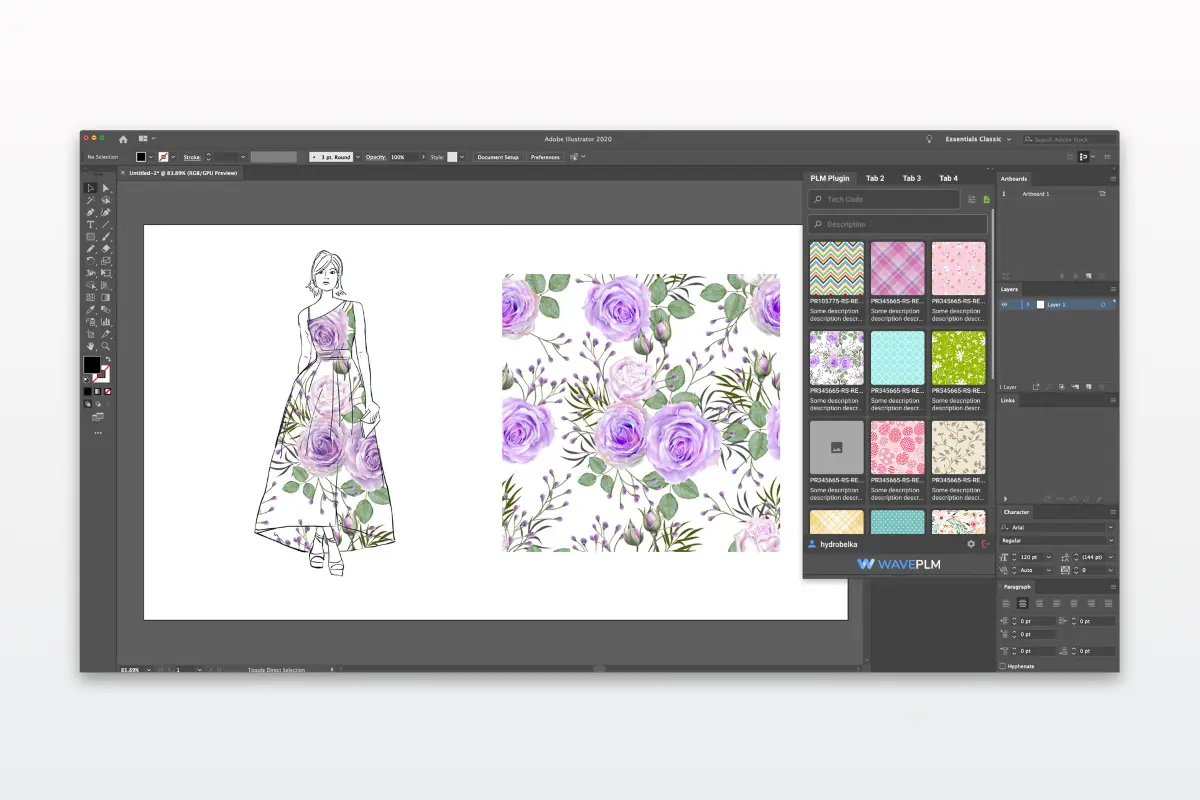
Step 1: Auditing Your Illustrator-to-Production Pipeline
Before you can fix a broken workflow, you need to see exactly where it’s breaking. That means tracing every touchpoint between an Illustrator file and the moment it reaches production — and being honest about what’s slipping through the cracks.
As WFX / World Fashion Exchange research notes, “Designers want to stay in their creative zone, while merchandisers need accurate data to manage margins and production.” That tension is exactly where pipelines fracture. Two teams, two priorities, one shared process that’s held together with email threads and good intentions.
Designer Pain Points
Use this checklist to identify where creative time is being lost:
- ☐ Artwork files are duplicated across local drives, shared folders, and email attachments
- ☐ Colorway updates require manually editing multiple files instead of syncing from one source
- ☐ Tech pack information is copied by hand from Illustrator into spreadsheets or separate documents
- ☐ Version history is tracked by file name suffix rather than a structured system
- ☐ Materials libraries exist only in someone’s head or a disconnected reference folder
Merchandiser Pain Points
On the other side of the pipeline, data accuracy suffers just as much:
- BOM details are frequently out of sync with the latest design revision
- Approved colorways are misidentified during sampling due to stale files
- Cost changes aren’t reflected until late in the development cycle
- There’s no single source of truth for sign-off status
A broken pipeline doesn’t just waste hours — it introduces errors that compound at every downstream stage, from sampling to final production.
Finding the best PLM with Adobe Illustrator integration for fashion teams starts with knowing precisely which of these gaps your current tools are failing to close. Once you’ve mapped your audit results, the next challenge is matching those gaps to a connector that scales with your team’s actual size and structure.
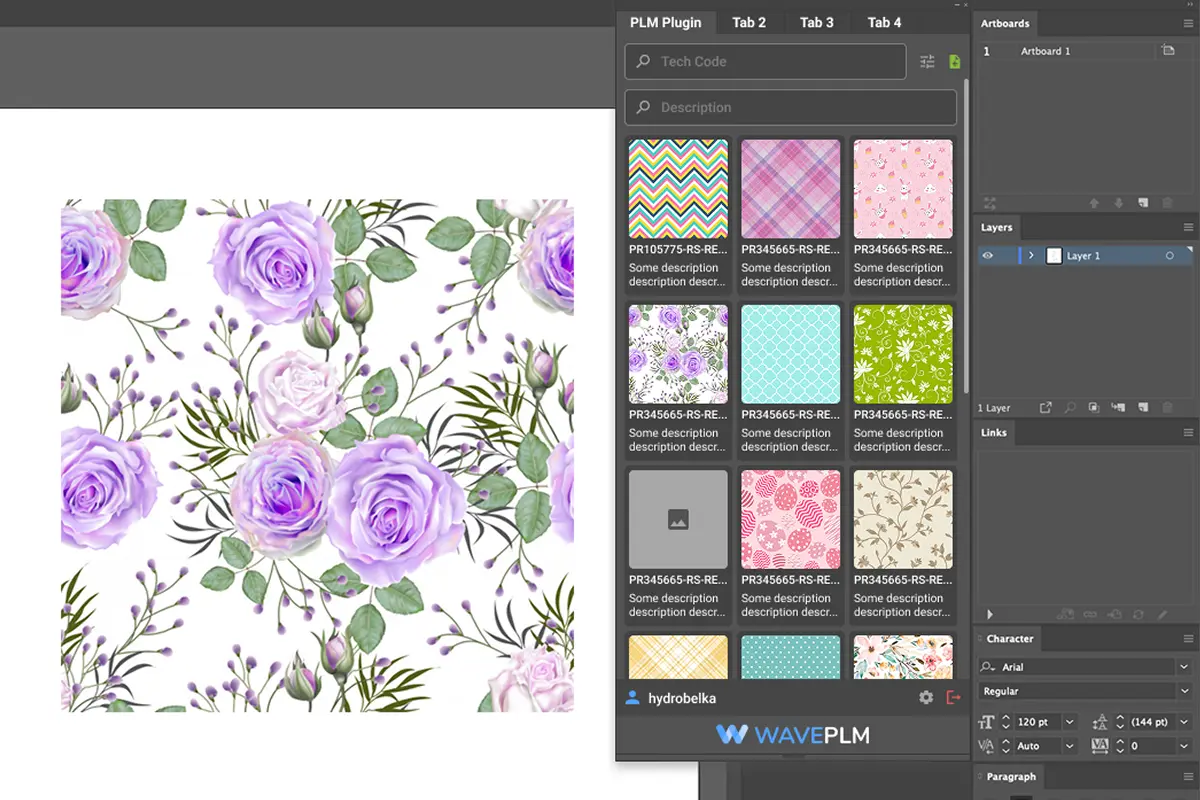
Step 2: Choosing the Right PLM with Adobe Illustrator Integration for Your Team
Now that you’ve mapped exactly where your pipeline breaks down, the next decision is choosing which PLM connector actually closes those gaps. Not every tool is built for every team — and picking the wrong one means trading one set of headaches for another.
The core differentiator to evaluate isn’t the PLM platform itself. It’s the Adobe Illustrator Tech Pack Plugin — specifically, how deeply that plugin talks back to the PLM system. One-way export tools push files out but never pull data in. Bidirectional connectors, on the other hand, let you sync colorways, update materials libraries, and propagate BOM changes without ever leaving your canvas.
What Separates Surface-Level Tools from Genuine Integrations
Some existing solutions allow designers to pull existing library components — trims, fabrics, hardware — directly from the PLM into Illustrator to speed up sketching. Others go further, pushing sketches, colors, and materials directly to the PLM without requiring designers to open a browser at all. That distinction matters enormously at scale.
Comparison by Team Size
| Tool Type | Best For | Key Integration Feature |
|---|---|---|
| Browser-based connector | Small studios (<10 designers) | Manual upload with version logging |
| Plugin with library sync | Mid-size brands (10–50 designers) | Pull trims and fabrics into AI |
| Full bidirectional plugin | Enterprise teams | Push colors, materials, and tech packs live |
The Right Questions to Ask Before Committing
Before you sign a contract, test these scenarios: Can a designer update a colorway in Illustrator and see that change reflected in the PLM record automatically? Can production pull a current BOM without waiting for a designer to re-export? If the answer to either is no, the integration isn’t as deep as the sales deck suggests.
With the right connector identified, the next step is configuring your actual workspace so designers can work at full speed from day one.
Step 3: Setting Up Your Creative Workspace (The Designer’s View)
With your connector selected, the real transformation begins at the desktop level — inside Illustrator itself. This is where an apparel PLM with AI connector stops being an IT project and starts becoming a daily design tool.
Installation and authentication typically take under 15 minutes. After installing the plugin panel, designers authenticate with their PLM credentials directly inside Illustrator. Once connected, the panel surfaces a live materials library, an active colorway palette, and a linked tech pack shell — all without opening a browser.
Mapping Your Artboard Structure
One practical approach is to align each artboard to a single SKU or colorway before you begin linking data. This matters because BeProduct and similar connectors treat complex artboards and layers as native Illustrator elements, meaning the data mapping follows your existing layer logic rather than forcing a rebuild.
Tip: Name your layers with intent before syncing. Layer names often become attribute identifiers inside the PLM record, so “Front-Body-Fabric” communicates far more than “Layer 3.”
From that point, pushing an update is a deliberate action — select the linked object, edit the attribute in the panel, and confirm. The change writes back to the PLM record immediately. No save-as, no renamed duplicate, no version confusion.
Verification Checkpoint After your first successful sync, confirm three things:
- The colorway appears in your PLM product record with the correct hex or Pantone reference
- Your artboard thumbnail has updated in the asset library
- No duplicate file was created locally under an auto-generated name
Once your creative workspace is stable and syncing cleanly, the next logical step is understanding how those linked assets feed directly into the bill of materials — the view that keeps merchandisers, sourcing teams, and production planners aligned from day one.
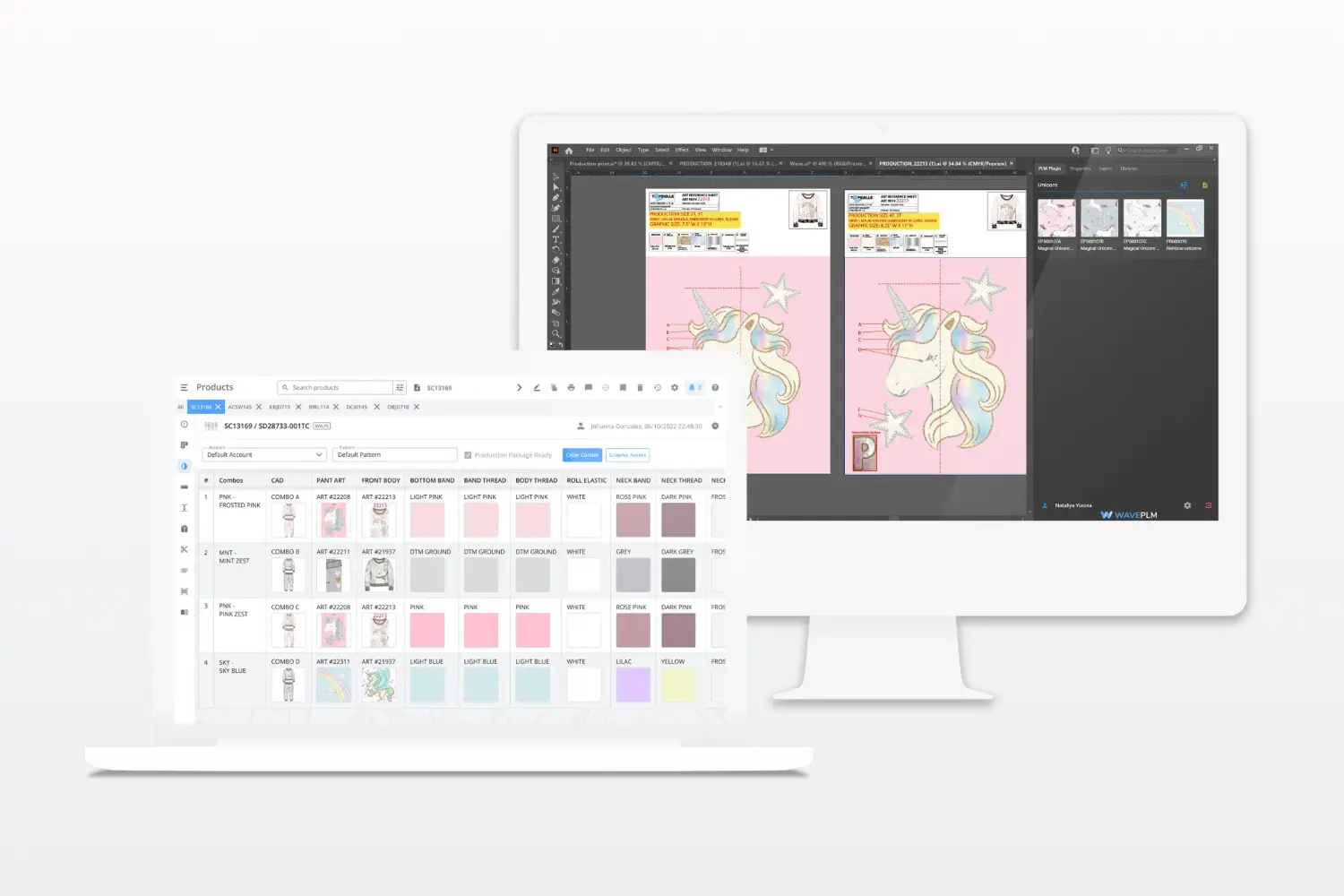
Step 4: Automating the Bill of Materials (The Merchandiser’s View)
While the previous steps focused on what designers see and experience inside Illustrator, there’s a parallel story unfolding on the merchandiser’s side — and BOM automation in fashion is where that story gets genuinely powerful.
Here’s the core concept to understand: every layer, callout, and labeled component in your Illustrator file contains structured data. An integrated PLM plugin reads that structure and automatically generates a Bill of Materials without a single copy-paste action. What typically happens is that designers finish a tech pack sketch, and the BOM populates in the PLM system in near real-time — no spreadsheet relay, no email chain.
Sync
When a designer places a fabric swatch, labels a hardware component, or adds a colorway callout, the plugin maps those elements directly to corresponding material records in the PLM system. The connection is bidirectional: updates made upstream (like a fabric substitution from sourcing) reflect in the designer’s workspace automatically.
Validate
Before a BOM moves forward, the integration runs a validation check — flagging missing supplier codes, incomplete material specs, or unresolved colorway conflicts. This catches errors at the design stage rather than during sampling, where corrections cost significantly more time and money.
Export
Once validated, the BOM exports into standardized formats that merchandising, sourcing, and costing teams can act on immediately — no reformatting required.
However, the BOM is only as reliable as the data feeding it. That brings up a critical operational question: which version of the file is actually the source of truth? That’s exactly what the next step addresses.
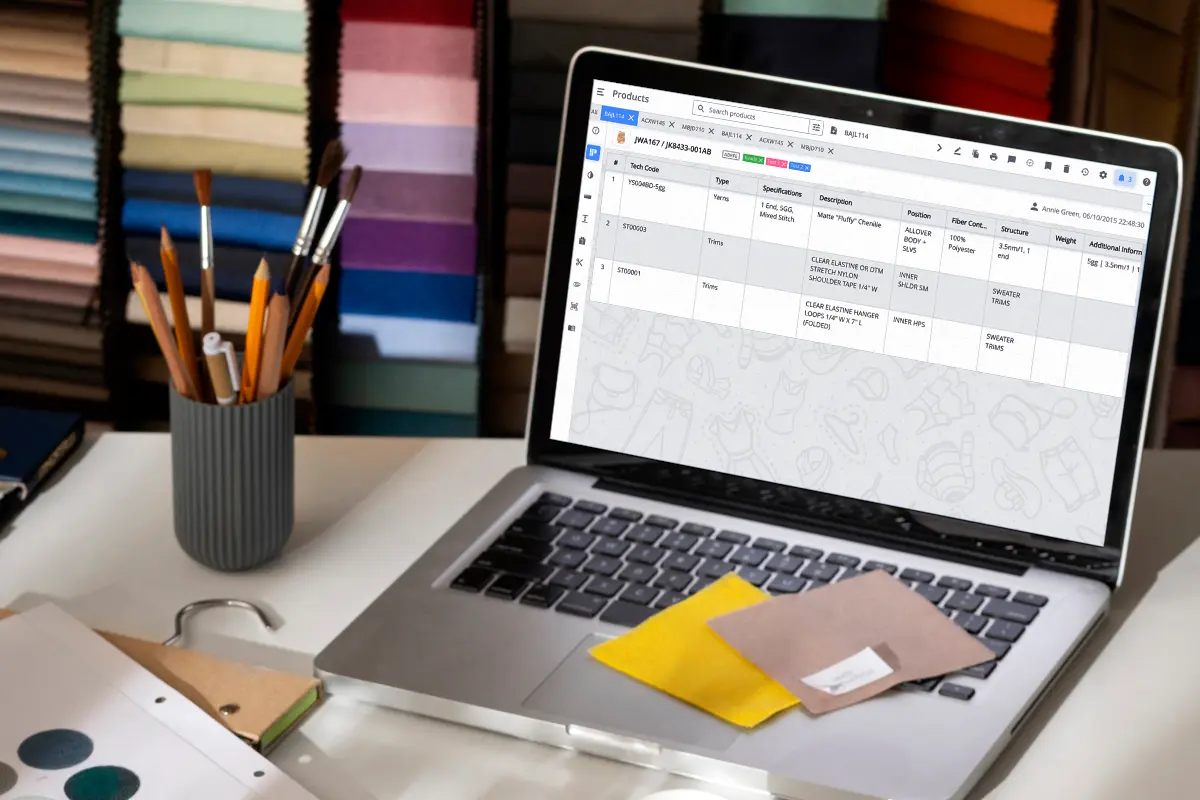
Step 5: Establishing a Single Source of Truth with Version Control
The death of the “Final_v2” file is not a minor productivity win — it’s a fundamental shift in how design decisions get recorded, shared, and trusted.
If the previous steps have shown you how to connect your workspace and automate your bill of materials, this step is where the real operational payoff lands. Version control through a PLM integration eliminates the chaos that file naming alone can never solve.
The Old Way vs. The Integrated Way
| Old Way | Integrated Way |
|---|---|
Logo_Final_FINAL_v3_USE THIS.ai |
One file, one canonical record in PLM |
| Emailing attachments to merchandisers | Bi-directional sync PLM updates push changes automatically |
| Manually noting colorway changes in a spreadsheet | Color updates reflect instantly across linked tech packs |
| Guessing which version production received | Timestamped version history with named contributors |
| Duplicate BOM entries across departments | A single, auto-updated BOM tied to the artwork file |
As one industry study noted, “The PLM holds the single source of truth, eliminating the need for confusing file naming conventions.” (Backbone PLM / DTC Workflow Study)
Why This Changes Everything
In practice, version drift is where product development costs bleed out quietly. A merchandiser references an outdated colorway; production cuts fabric from the wrong spec. With a connected integration, every stakeholder pulls from the same live record.
However, this only works consistently if your team commits to saving through the PLM connector rather than around it. One bypass breaks the chain.
Once your single source of truth is established, the natural next question becomes: how do you actually confirm the integration is delivering measurable time savings? That’s exactly where the next step focuses.
Verification: Is Your Integration Actually Saving Time?
Setting up a PLM-Illustrator integration is a meaningful investment — but how do you prove it’s delivering? Before walking into a leadership meeting, you need concrete metrics that connect the workflow changes covered in the previous steps to measurable business outcomes.
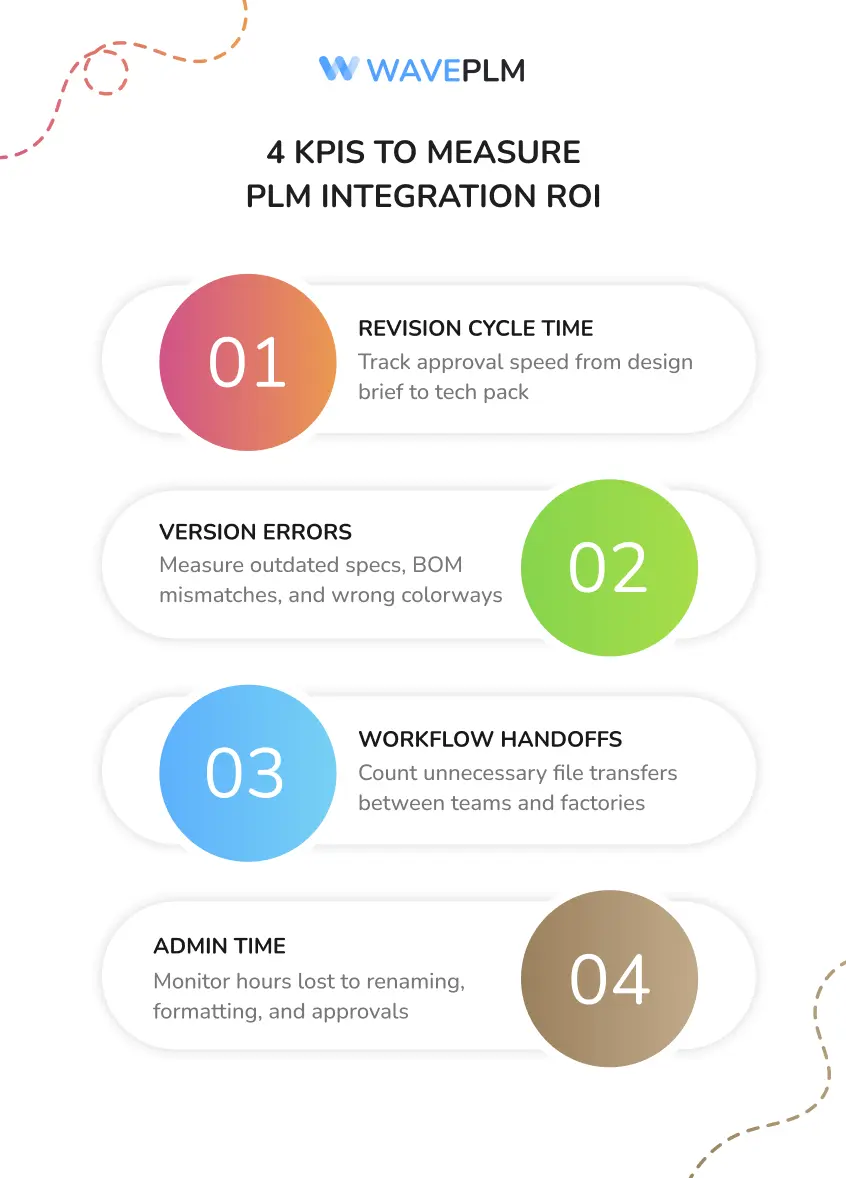
The four KPIs most worth tracking are:
- Revision cycle time: Measure the average hours between a design brief and an approved tech pack. A functioning integration typically compresses this window significantly — brands using integrated AI-PLM workflows report up to a 20% increase in time available for creative design tasks, freeing designers from administrative overhead.
- Version-related errors: Track how often production receives an outdated colorway, incorrect material spec, or mismatched BOM. A single source of truth — as established in the previous step — should push this number toward zero within two or three seasonal cycles.
- Handoff touchpoints: Count how many people touch a file between the designer and the factory. In practice, every unnecessary handoff is a compounding risk for naming errors, data loss, and miscommunication.
- Time spent on non-design tasks: Log hours spent renaming files, reformatting specs, or chasing approvals. This baseline is often eye-opening for leadership skeptical of the integration’s ROI.
Integrated workflows don’t just save hours — they redirect creative energy toward decisions that actually differentiate a product.
Audit these four metrics at the end of your first integrated season. The gap between your baseline and post-integration numbers tells a clearer story than any feature list — and it’s exactly the kind of evidence that makes the case for scaling the tool across the full design organization. If those numbers aren’t moving yet, the next step may be a closer look at the platform itself.
Book a Demo with Wave PLM
The file-naming chaos, the version confusion, the disconnected BOM data — none of it is inevitable. Throughout this guide, you’ve seen how a properly configured PLM-Adobe Illustrator integration transforms the way design teams work: eliminating redundant files, establishing a single source of truth, syncing colorways and materials libraries bidirectionally, and giving you measurable proof that the investment is paying off.
A disconnected design workflow isn’t just a frustration — it’s a competitive disadvantage that compounds with every new season and every added SKU.
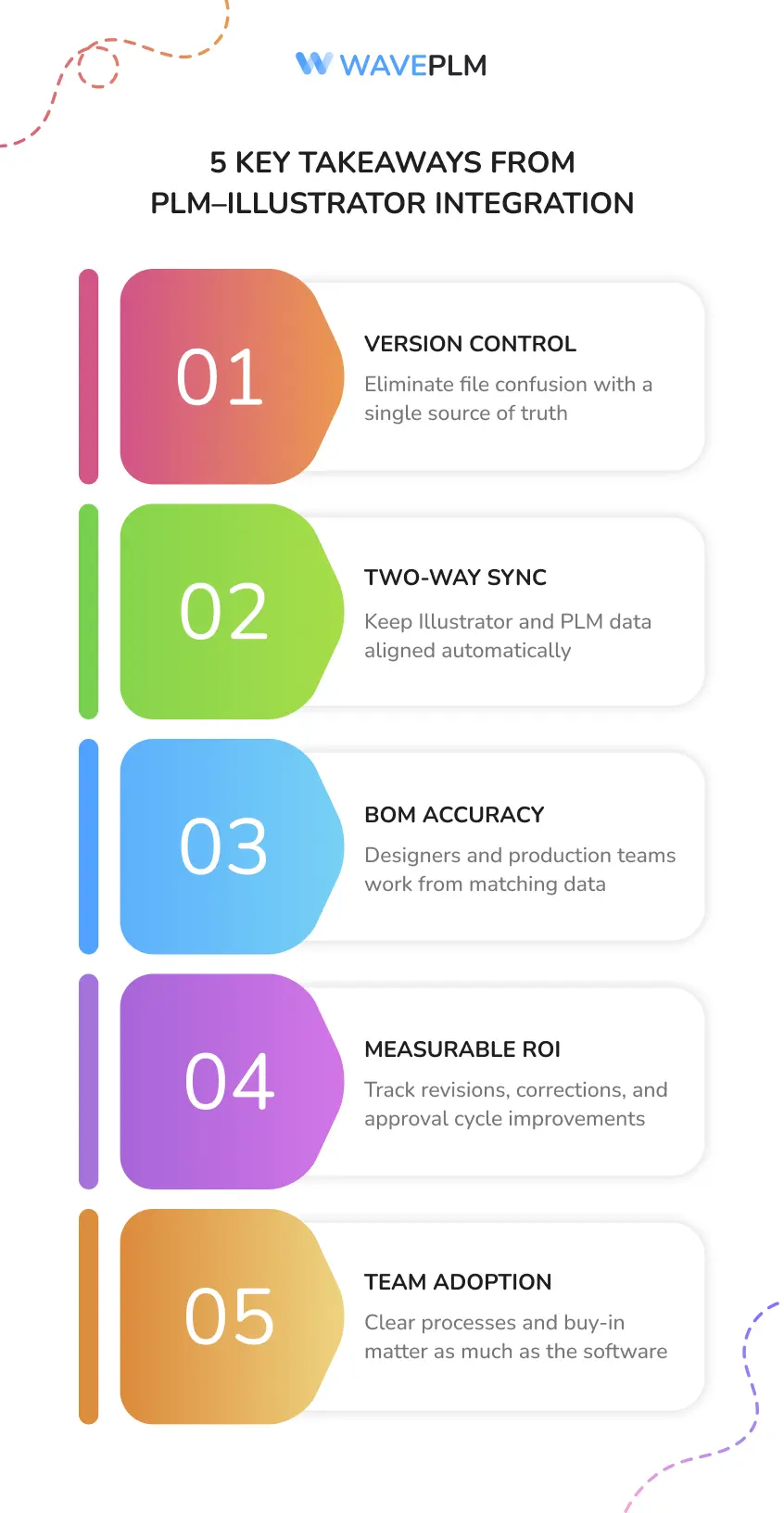
Here’s what you should take away from everything covered:
- Version control is a process problem, not a file-naming problem — PLM solves it at the source
- Two-way data sync between Illustrator and your PLM eliminates redundant data entry and costly specification errors
- BOM accuracy and colorway management are designer-facing workflows, not just back-office concerns
- ROI is measurable — track time-per-tech-pack, revision cycles, and sample correction rates before and after integration
- Adoption drives results — the most capable integration fails without team buy-in and clear workflow documentation
Wave PLM’s Adobe Illustrator integration is built specifically around these realities, with named plugin architecture, structured two-way data flow, and designer-centered workflows that support tech pack creation, materials libraries, and colorway updates directly inside Illustrator.
A properly configured PLM with Adobe Illustrator integration closes the gap between your design canvas and production data. If your team is still living inside folders of Final_v3_REAL_THIS_TIME.ai files, it’s time for a different approach. Book a demo with Wave PLM to see exactly how the integration works inside your specific workflow — and what a cleaner design process looks like starting next season.
Key Takeaways
- Artwork files are duplicated across local drives, shared folders, and email attachments
- Colorway updates require manually editing multiple files instead of syncing from one source
- Tech pack information is copied by hand from Illustrator into spreadsheets or separate documents
- Version history is tracked by file name suffix rather than a structured system
- Materials libraries exist only in someone’s head or a disconnected reference folder





Leave a Reply